My home server runs Proxmox (9.2.21, latest version as of October 2026) and has an NVIDIA Quadro T400 4GB card in it. I share this card with 2 LXC containers – one for Plex and one for Docker where codeproject.ai runs for AI object detection with BlueIris.
Sharing one GPU with multiple containers is handy, but for a while I was having a driver nightmare while using the debian-provided nvidia driver packages. Here is the improved and tested solution recommended by Claude that has made this easier.
Remove Old Drivers
Uninstall any nvidia driver packages you may have installed before now. You can do that with apt-get remove <listofpackages>. It’s OK to leave the pve-nvidia-vgpu-helper package around. Packages that have been uninstalled will show a rc at the front, and installed packages have ii. In the below example, I uninstalled all the previous packages.
HOST # apt-get remove glx-alternative-nvidia nvidia-alternative nvidia-installer .....


HOST # dpkg --list | grep nvidia

rc  glx-alternative-nvidia               1.2.2

rc  nvidia-alternative                   535.261.03-1

rc  nvidia-installer-cleanup             20220217+3~deb12u1

rc  nvidia-kernel-common                 20220217+3~deb12u1

rc  nvidia-kernel-support                535.261.03-1

rc  nvidia-legacy-check                  535.261.03-1

rc  nvidia-persistenced                  535.171.04-1~deb12u1

rc  nvidia-support                       20220217+3~deb12u1

ii  pve-nvidia-vgpu-helper               0.3.1

rc  xserver-xorg-video-nvidia            535.261.03-1
headers / DKMS / build-essential / block nouveau / reboot
Make sure to install the headers package, and compiling tools needed for DKMS to compile the kernel modules for future kernels automatically.
HOST # apt-get install proxmox-default-headers build-essential dkmsLastly let’s blacklist the open source driver and reboot so the module isn’t loaded.
HOST # cat <<EOF > /etc/modprobe.d/blacklist-nvidianouveau.conf

blacklist nouveau

blacklist nova

blacklist nova_core

options nouveau modeset=0

EOF

HOST # update-initramfs -u -k all

HOST # reboot
Install New Drivers on Host
Go to the Nvidia drivers page here: https://www.nvidia.com/en-us/drivers/
Enter the video card you have into the search and select Linux 64-bit for the OS version. It will provide you with a link to a *.run file. Here is what the search looks like for my T400 card and the file shown.
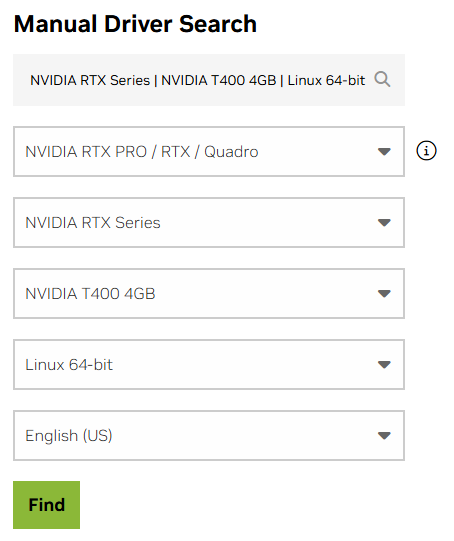
Right-click the Download button and “copy link address” to use in terminal. Now let’s store a copy of the drivers package on the host.
HOST # mkdir /opt/nvidia

HOST # cdd /opt/nvidia

HOST # wget https://us.download.nvidia.com/XFree86/Linux-x86_64/$VERSION/NVIDIA-Linux-x86_64-$VERSION.run

HOST # chmod +x NVIDIA-Linux-x86_64-$VERSION.run

HOST # ./NVIDIALinux-x86_64-$VERSION.run --dkms --no-questions --ui=none --disable-nouveau
Make sure the modules are live and working, seeing if you get any output from this:
HOST # nvidia-smi

Thu Oct  8 15:52:53 2026

+-----------------------------------------------------------------------------------------+

| NVIDIA-SMI 595.80                 Driver Version: 595.80         CUDA Version: 13.2     |

+-----------------------------------------+------------------------+----------------------+

| GPU  Name                 Persistence-M | Bus-Id          Disp.A | Volatile Uncorr. ECC |

| Fan  Temp   Perf          Pwr:Usage/Cap |           Memory-Usage | GPU-Util  Compute M. |

|                                         |                        |               MIG M. |

|=========================================+========================+======================|

|   0  NVIDIA T400 4GB                Off |   00000000:06:00.0 Off |                  N/A |

| 40%   52C    P0            N/A  /   31W |       0MiB /   4096MiB |      0%      Default |

|                                         |                        |                  N/A |

+-----------------------------------------+------------------------+----------------------+


+-----------------------------------------------------------------------------------------+

| Processes:                                                                              |

|  GPU   GI   CI              PID   Type   Process name                        GPU Memory |

|        ID   ID                                                               Usage      |

|=========================================================================================|

+-----------------------------------------------------------------------------------------+
Lastly, create a systemd service for nvidia-persistenced so that the device files won’t disappear when no monitors are plugged in.
HOST # nvidia-smi -pm 1Create LXC Container
I won’t go into detail on the creation – just create a container with a modern Ubuntu or Debian operating system, make it *unprivileged* and ensure the “nesting” feature is enabled. No need to start the container yet.
Get the list of devices that need passing through to the container:
# ls -l /dev/nvidia*

crw-rw-rw- 1 root root 195,   0 Oct  3 18:15 /dev/nvidia0

crw-rw-rw- 1 root root 195, 255 Oct  3 18:15 /dev/nvidiactl

crw-rw-rw- 1 root root 510,   0 Oct  3 18:15 /dev/nvidia-uvm

crw-rw-rw- 1 root root 510,   1 Oct  3 18:15 /dev/nvidia-uvm-tools


/dev/nvidia-caps:

total 0

cr-------- 1 root root 235, 1 Oct  3 18:15 nvidia-cap1

cr--r--r-- 1 root root 235, 2 Oct  3 18:15 nvidia-cap2
Note the numbers to the left called the “major device numbers”. In this case, we have 195, 510 and 235.
Find the LXC config file that belongs to your new container in /etc/pve/lxc. It will be called <CTID>.conf. Open the file in your preferred editor. Put entries in the file like the below, making sure to adjust the 195, 510 and 235 to what your values are.
lxc.cgroup2.devices.allow: c 195:* rwm

lxc.cgroup2.devices.allow: c 510:* rwm

lxc.cgroup2.devices.allow: c 234:* rwm

lxc.mount.entry: /dev/nvidia0 dev/nvidia0 none bind,optional,create=file

lxc.mount.entry: /dev/nvidiactl dev/nvidiactl none bind,optional,create=file

lxc.mount.entry: /dev/nvidia-modeset dev/nvidia-modeset none bind,optional,create=file

lxc.mount.entry: /dev/nvidia-uvm dev/nvidia-uvm none bind,optional,create=file

lxc.mount.entry: /dev/nvidia-uvm-tools dev/nvidia-uvm-tools none bind,optional,create=file

lxc.mount.entry: /dev/nvidia-caps/nvidia-cap1 dev/nvidia-caps/nvidia-cap1 none bind,optional,create=file

lxc.mount.entry: /dev/nvidia-caps/nvidia-cap2 dev/nvidia-caps/nvidia-cap2 none bind,optional,create=file
Note: These values CAN change each time the host kernel is updated and a reboot done. If something stops working, you may want to check these values.
Install New Drivers on Container
Push the same driver file from the host to the container.
HOST # pct push <CTID> /opt/nvidia/NVIDIALinux-x86_64-$VERSION.run /root/NVIDIA-Linuxx86_64-$VERSION.runNow enter the container, and install the driver in there. Lastly run nvidia-smi to ensure the drivers are working and the card is found.
HOST # pct enter <CTID>


CONTAINER # chmod +x /root/NVIDIA-Linux-x86_64-$VERSION.run

CONTAINER # ./NVIDIA-Linux-x86_64-$VERSION.run --no-kernel-module --no-questions --ui=none


CONTAINER # nvidia-smi
Install Docker / NVIDIA Container Toolkit
Follow the instructions to install Docker:
– Debian: https://docs.docker.com/engine/install/debian/
– Ubuntu: https://docs.docker.com/desktop/setup/install/linux/ubuntu/
Install NVIDIA Container Toolkit
– https://docs.nvidia.com/datacenter/cloud-native/container-toolkit/latest/install-guide.html
Modify the NVIDIA Container Toolkit setup and apply settings to docker:
CONTAINER # vi /etc/nvidia-container-runtime/config.toml


Change:

# no-cgroups = false

To:

no-cgroups = true


Save


CONTAINER # nvidia-ctk runtime configure --runtime=docker

CONTAINER # systemctl restart docker
Repeat these steps for any additional containers that need GPU access.
Updates
Now you should be able to update proxmox, install new kernels, and DKMS will ensure that the modules get built for the new kernel. After a reboot, both host and containers should have the same working drivers.
Should you need to update the NVIDIA drivers, download the new version on the host to /opt/nvidia, install it the same way as before, push the file to the container(s), install it there with the same commands, and then restart.
Any problems or fixes, please let me know!